Terminal Hotkeys
Terminal Hotkeys
This brief guide outlines the key steps a trader needs to take to trade in the Moonbot terminal.
⚠️ This guide lists the hotkey settings configured by default in the terminal. You can change them yourself on the Settings → Hotkeys tab.
Abbreviations: SHIFT, CTRL, ALT, Up, Down – keys on the keyboard.
Terminal modes, coin selection and connection status
-
Enable/disable emulation mode: Menu → Emulation mode (tick box ticked). When Emulation mode is enabled, the text == EMULATION == appears in red at the top of the terminal’s main window.


-
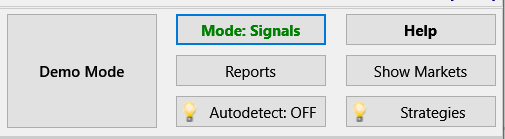
Enable/disable Demo Mode (demonstration of the terminal’s automatic operation): the Demo Mode button
-
Hide the Demo Mode button: click the Settings button → User Interface → Main window section → tick the Hide "Demo" Button box
-
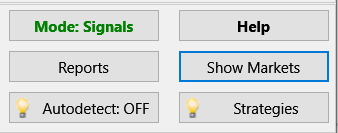
Select a coin to trade: click the Show Markets button → open the MarketsTable → click on the row containing the coin you want
-
You can monitor the quality of the connection to the exchange to ensure minimal delays (connection, ping, API load, clock accuracy) in the status bar at the bottom of the terminal’s main window:
-
The connection circle must be green in colour
-
The Ping value should be green and have minimum values (for VDS 10–30 ms, for a local PC 200–500 ms)
-
The API Load bar should be green, which indicates a moderate load on the API
-
The value of Clock accuracy must be no more than 50 ms.

Charts and current prices
-
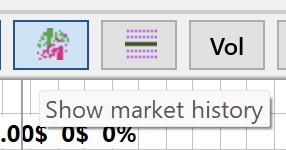
You can display tick trades on the chart using the Show market history button on the panel above the chart
-
View the current price of the selected coin:
-
For BTC: the current price of BTC is shown in US dollars in the main window of the terminal, below the Pairs: button:
-
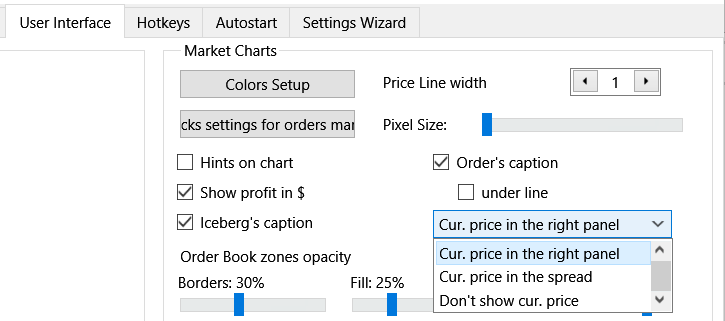
The option to display the current price on coins is configured via Settings → User Interface in the Market Charts section of the additional menu:
-
Cur. price in the right panel – the current price of the coin will be displayed at the bottom of the right-hand panel of the Moonbot terminal’s main window
-
Cur. price in the spread – the current price of the coin will be displayed in the spread between the ASK and BID prices in the main window of the Moonbot terminal
-
Don't show cur. price – the current price of the coin will not be displayed either in the right-hand panel or in the spread area.
-
Change the time scale on the graph:
-
Adjust the zoom level across the entire graph: hover your cursor over the graph and scroll the mouse wheel
-
Significant zoom across the entire chart: hover over the chart and scroll the mouse wheel whilst holding down SHIFT+CTRL
-
Zooming in on the graph in the area under the cursor: hover the cursor over the graph and scroll the mouse wheel whilst holding down the CTRL key.
-
Shift the chart:
-
Manually: scroll the mouse wheel while holding down the left mouse button, or whilst holding down the SHIFT or ALT keys
-
Enable auto-scroll for charts: click the button with the blue arrow in the panel above the chart window. This will lock the chart to the right-hand edge, and new trades will be displayed to the right, starting from the level of an imaginary vertical line. When the blue arrow button is disabled, you can move the coin chart by holding down the left mouse button on the chart and dragging it in the desired direction.
-
Change the price scale: hold down the left mouse button and move the mouse up or down within the price display area (the area on the far left of the chart), or use the fixed scale buttons above the coin chart
-
For multiple monitors: return the terminal window and all its interface windows to the main monitor: CTRL+SHIFT+F10.
Place an order manually
-
Click within the order book area using the following key combinations to place:
-
Long Buy order: Double Left Click
-
Pending (deferred) Long order: CTRL+Left
-
Short Buy order: ALT+Left
-
Pending (deferred) short order: SHIFT+Left
💡 To change these hotkey combinations: click the Settings button → Hotkeys → the Orders Controls tab for Buy orders and Pending (deferred) orders in Long and Short positions. -
Click the Buy button in the right-hand settings panel of the terminal’s main window
-
Use hotkeys to place:
-
Long Buy order: Alt+1
-
Short Buy order: Alt+2
💡 To change these hotkey combinations: click the Settings button→ Hotkeys → Controls settings section → the New Long or New Short fields.
Change the order price manually
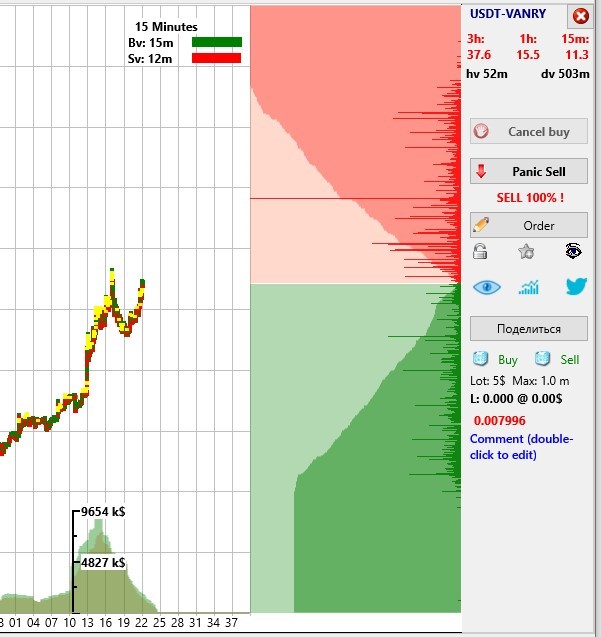
You can change the price of an order in the following ways:
-
In the order book area, left-click on an order line and, whilst holding down the left mouse button, drag it up or down by the required distance
-
Click the Order button, or right-click on the order and select Order from the menu to open the Active Order window, where you can amend the order parameters
-
Adjust the price by 1% up or down:
-
For Buy order: SHIFT+Up / SHIFT+Down
-
For Sell order: ALT+Up / ALT+Down
💡 To change these hotkey combinations: click the Settings button → Hotkeys → the Controls section→ fields Shift buys +1% / Shift buys -1% and Shift sells +1% / Shift sells -1%.
💡 The order movement algorithm can also be configured using manual or automatic strategies by adjusting the relevant parameters within them.
Change the take-profit (TP)
-
For all new orders:
-
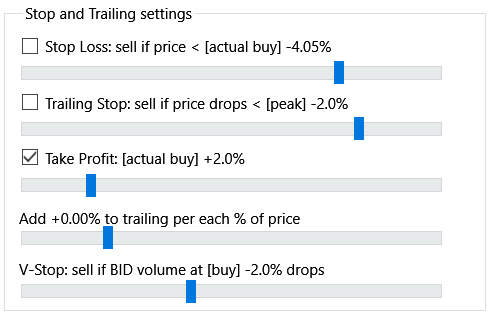
Activate TP: click the Settings button → Main → in the Stop and Trailing Settings section → tick the box for Take Profit: [buy] +N%
-
Set the slider to the required TP value in %.
💡 You can set the TP value without going into Settings by using the TP: X% slider in the main window, located on the panel to the right of the red BNB Balance label.
-
For a specific order:
-
In the order book area, left-click on the TP line and holding down the left mouse button, drag it up or down by the required distance
-
Press the Order button or right-click on the TP and select Order from the menu to open the Active Order window, where you can change the TP settings.
💡 You can also set the TP adjustment algorithm using manual or automatic strategies by configuring the relevant parameters in the Sell orders tab.
Change the stop-loss (SL)
-
For all new orders:
Settings button → Main → Stop and Trailing settings → set the required SL value using the slider Stop loss: sell if price < [buy] ±N%
💡 You can set the SL value without going into Settings, by using the slider SL: X% in the main window, on the panel to the right of the red text BNB Balance. -
For a specific order:
-
To activate SL: in the orders window below the chart, click on the text SL: ON/OFF for the relevant order to change its status to SL: ON; an SL line will then appear on the coin’s chart
-
In the order book area, left-click on the SL line and, whilst holding the mouse button down, drag it to the desired position above or below.
Cancel the order
To cancel Buy orders that have been placed but not yet executed, you can use one of the following methods:
-
Select the relevant Buy order in the orders window below the coin chart, click on the corresponding red cross on the left and confirm the cancellation
-
Select the relevant Buy order in the orders window below the coin chart, right-click and choose the appropriate action to cancel the order from the menu:
-
Cancel all pending — cancels only all pending orders, but does not affect unfilled limit buy orders. If you have both Buy and Pending orders open at the same time, selecting this option will cancel all Pending orders for all coins, while Buy orders will remain unchanged
-
Cancel all real buys — cancels all Buy orders, whilst Pending orders remain unaffected. If you have placed both types of order and select this option, you will see that Buy orders for all coins are cancelled, while Pending orders remain active
-
Cancel ALL BUYs — completely cancels all Buy orders, including pending orders. Once you click this option, all such orders will be cancelled across all coins
-
Close ALL orders — performs a combined action: cancels all Buy orders and, at the same time, triggers an immediate market sale of all Sell orders. Once confirmed, the trading platform will remove all Buy orders, set a VStop at [buy price + 1%] and activate Panic Sell for all Sell orders across all coins.
-
Right-click on the ‘Buy’ line of the order and select Cancel from the menu
-
Move the mouse cursor over the Buy orders while holding down the Tab or DEL key
-
Use the hotkey Cancel BUY: ALT+Z
-
Use the hotkey Cancel ALL buys: ALT+A
💡 To change these hotkey combinations: click the Settings button -> Hotkeys -> Controls section -> Cancel Buy, Cancel ALL Buys fields.
Close the order
Manually close a specific Sell order
To close a specific Sell order (to sell at the current price), left-click on it and then move it to the opposite order book. For example, if you had a Long position, the Sell order should be moved from the red order book to the green one.
Close the order via Panic Sell
You can close an order when a Panic Sell occurs in the following ways:
-
In the right-hand control panel of the main window, click the Panic Sell button
-
Use the Panic Sell hotkey: ALT + 5
-
Use the hotkey Panic Sell 1 order: ALT + 6
💡 To change these hotkey combinations: click the Settings button → Hotkeys → the Controls section → the Panic Sell and Panic Sell 1 order fields.
Balance sheet and statistics

-
View available trading balance (options):
-
Total USDT: in the top left-hand corner of the terminal’s main window
-
Click the Menu → Assets button; the Assets window displays both your available balance and your coin balances on the spot and futures markets.
-
View open (active) orders and their outcome (profit/loss) (options):
-
In the orders window below the coin chart
-
The Reports→ in the Order Status drop-down list, select Active only → for each order, the value in Profit USDT and the total for all trades, Total, are shown below the table
-
Visually assess active positions on the coin chart: the price at which the coins were bought, the price at which they are planned to be sold, and the current profit or loss in exact figures, which are shown on the chart Session, Open and the figures to the left of these values.
-
To view trade statistics for the selected period: click the Reports button → in the drop-down list Order Status , select All / Active only / Close only, tick the Emulator box for emulated orders or untick it for live orders, and enter the required start and end dates in the From / To fields.
Alerts

-
Set alerts for shapes on coin charts (without auto-buy): click the Pencil button, select the required pattern and draw it on the chart → right-click at any vertex of the pattern (for a straight line – at any point on the line) → in the drop-down menu, tick the Alert box.
As a result, the terminal will emit audible alerts and display a ‘detect’ button showing the currency’s name whenever the current price crosses the lines of the pattern with the set alert on the chart. -
Set alerts for chart patterns on coin charts (with auto-buy and other active actions):
-
Click the 💡 Strategies button
-
In the Strategies window, create one or more Alerts strategies , and configure their settings to trigger the required actions when an alert is triggered
-
On the Buy conditions strategies Alerts tab, tick the box for AutoBuy=YES (for automatic buying)
-
In the Strategies window, click the Save, Start and OK buttons
-
Go to Menu -> Alerts to open the Alerts In the Def Strategy menu, select the required Alerts strategy, which will be triggered once an alert has been set on the coin’s chart.
-
Click on the Pencil button, select the required shape and draw it on the chart → right-click at any vertex of the shape (for a straight line – at any point on the line) → tick the Alert box in the drop-down menu.
This alert will be linked to the selected Alerts strategy now.
As a result, you can configure the terminal to perform various additional actions via the Alerts strategy whenever the current price crosses the line of the shape on the chart: play a specific sound, send a message via Telegram, trigger another strategy, place an order, buy a coin at market price, and perform other actions.
Strategies and Detectives
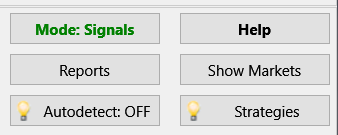
To activate strategies with detectors that do not include auto-purchase:
-
Click on the Strategies button; in the Strategies window that appears:
-
Select a strategy and configure its settings for the required detection
-
On the Buy conditions tab in the strategy settings, tick the box for AutoBuy=NO (no auto-buy)
-
In the Strategies window, tick the box to the left of the selected strategy and click the Save, Start Selected and OK buttons.
-
Click the buttons in the top right-hand corner of the terminal’s main window: 💡 Autodetect: ON, Mode: Manual and 💡Strategies. In this mode, the terminal will run strategies that will only provide detection and open coin charts; you will be able to place orders, move them and buy coins manually as the situation requires.
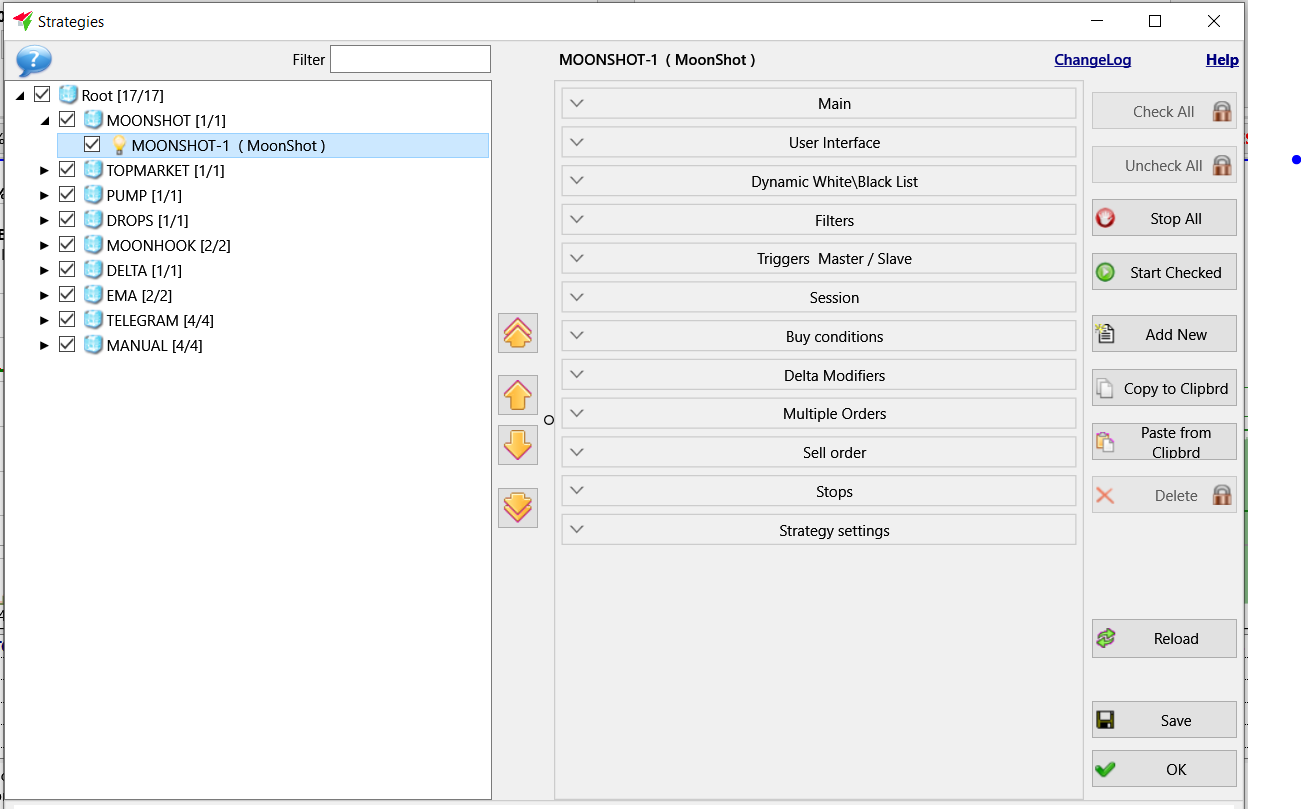
To activate strategies with alerts and auto-buy:
-
Click the Strategies button; in the Strategies window:
-
Select a strategy and configure its settings for the required detection
-
On the Buy conditions tab of the strategy settings, tick the box for AutoBuy=YES (with auto-buy)
-
In the Strategies window, tick the box to the left of the selected strategy and click the Save, Start Selected and OK buttons
-
Click the buttons in the top right-hand corner of the terminal’s main window: 💡 Autodetect: ON, Mode: Signals and 💡Strategies. In this case, the terminal will execute strategies which, following detection, will place limit orders, execute market buys, and adjust order positions according to the algorithms configured by the user within the strategies.