System settings
System settings
You can open the terminal’s system settings window via Menu → System Settings.
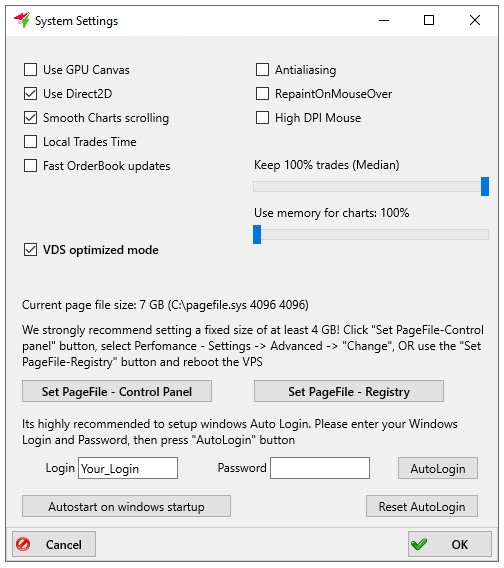
You can hover your mouse cursor over the setting you’re interested in to see a tooltip.
☐ Use GPU Canvas – use hardware acceleration (the monitor scale will always be 100%; may cause artefacts);
☐ Use Direct2D – use DirectX (recommended in most cases);
☐ Smooth Charts scrolling – smooth chart scrolling (only in the PRO version of the terminal where the Moon Scalper feature is enabled);
☐ Local Trades Time – use local time to plot trades on charts (enable if your clock is not synchronised);
☐ Fast OrderBook updates – fast order book updates (only when using the Moon Scalper module);
☐ Antialiasing – use antialiasing when rendering charts (the chart may appear blurred);
☐ RepaintOnMouseOver – smooth cursor rendering (uses more system resources);
☐ High DPI Mouse – enable for high DPI mice to reduce chart lag;
☐ Keep 100% trades (Median) – the slider ranging from 20% to 100% for dynamically removing trades by aggregating them to save memory. This mechanism thins out the chart by removing small trades that have little impact on price but place a heavier load on memory. This setting affects strategies where precise tracking of all trades is required;
☐ Use memory for charts: XX% – this parameter is available when the terminal is running on a VDS with 1 GB of memory and a swap file enabled. This setting affects the number of bars on the graph in the report. We strongly recommend increasing this value only on a 2GB VPS!
☐ VDS optimized mode – tick this box if the terminal is running on a dedicated server (VDS); after enabling this setting, you must restart Moonbot as an administrator; this mode reduces memory and CPU usage by optimising the storage and rendering of charts, whilst allocating more resources to the algorithms.
Moonbot can run on both a desktop PC and a dedicated server (VDS).
A VDS is a virtual dedicated server on which you can install the Windows operating system and deploy Moonbot for round-the-clock remote operation. In this case, the terminal will operate independently of your local PC.
You can connect to the server via remote desktop applications from a computer or smartphone, and also link the terminal running on the VDS to a Telegram chat for remote control.
The VDS will be particularly useful:
-
For users who use automated trading and do not wish to keep their local PC switched on 24/7; keeping the computer running continuously puts a strain on the hardware; furthermore, automated trading requires a minimum ping to the exchange — from 10 ms, which can be achieved by hosting the terminal on a VDS; this improves the response time of the triggers, speeds up order placement, as well as coin buying and selling transactions;
-
Users who do not have a PC running the Windows operating system; in this case, they can install a Windows emulator, replace the device, or set up a terminal on a VDS server.
VDS requirements for the automotive trade
VDS servers are usually a paid service.
For automated trading, a basic configuration is sufficient:
- 2 CPU cores;
- 2 GB or more of RAM.
It is advisable to choose a server in the same geographical location as the servers of the relevant exchange to ensure the lowest possible ping:
-
For the Binance exchange: Tokyo (Japan).
-
For the HTX exchange: Tokyo (Japan).
-
For the Bybit exchange: Singapore.
-
For the Gate exchange: Tokyo (Japan).
-
For the Bitget exchange: Tokyo (Japan).
-
For the Hyperliquid exchange: Tokyo (Japan) * although other locations are also possible, as the servers are distributed.
VDS requirements for manual trading
When trading manually, working via a remote desktop may be less comfortable due to potential delays in cursor movement and interface response.
In this case, it is recommended to choose a more powerful server:
- 4 CPU cores;
- 4 GB or more of RAM.
Setting a fixed page file size
The following setting is displayed: Current page file size: XX GB (C:\pagefile.sys …).
⚠️ Important! We strongly recommend setting a fixed page file size of 4 GB. To do this, follow one of the steps below:
-
In the System Settings window, click the Set PageFile button; the System Properties window will open; then go to Performance → Settings → Advanced → Change and set a fixed page file size;
-
Click the Set PageFile-Registry button; the page file will automatically be set to 4 GB; then close the Moonbot terminal and restart the VPS for the changes to take effect.
Setting up automatic login in Windows
We recommend setting up automatic login in Windows. To do this:
-
In the Login field, enter your Windows username;
-
In the Password field, enter your Windows account password;
-
Click the AutoLogin button.
To disable automatic login, click the Reset Autologin button.
You can also add the Moonbot terminal to the Windows startup list. To do this, in the settings window, click the Run at Windows startup button, then restart the server (for example, via the VDS control panel). Once the operating system has booted, the terminal should start automatically and continue running.
⚠️ Important! On VDS, it is recommended to disable Windows updates and Windows Defender. During the update process, the system may close the terminal, and Windows Defender may block related processes. In this case, orders will remain on the exchange without management.
💡 Please note that on VDS, it is also recommended to disable the Automatic daylight saving time setting, as well as to monitor time synchronisation and ensure the correct time zone is set.
Table of recommended terminal settings
The table below lists the recommended settings for optimal terminal performance. Please note that the optimal values depend on your PC’s configuration or the specifications of the VDS server.
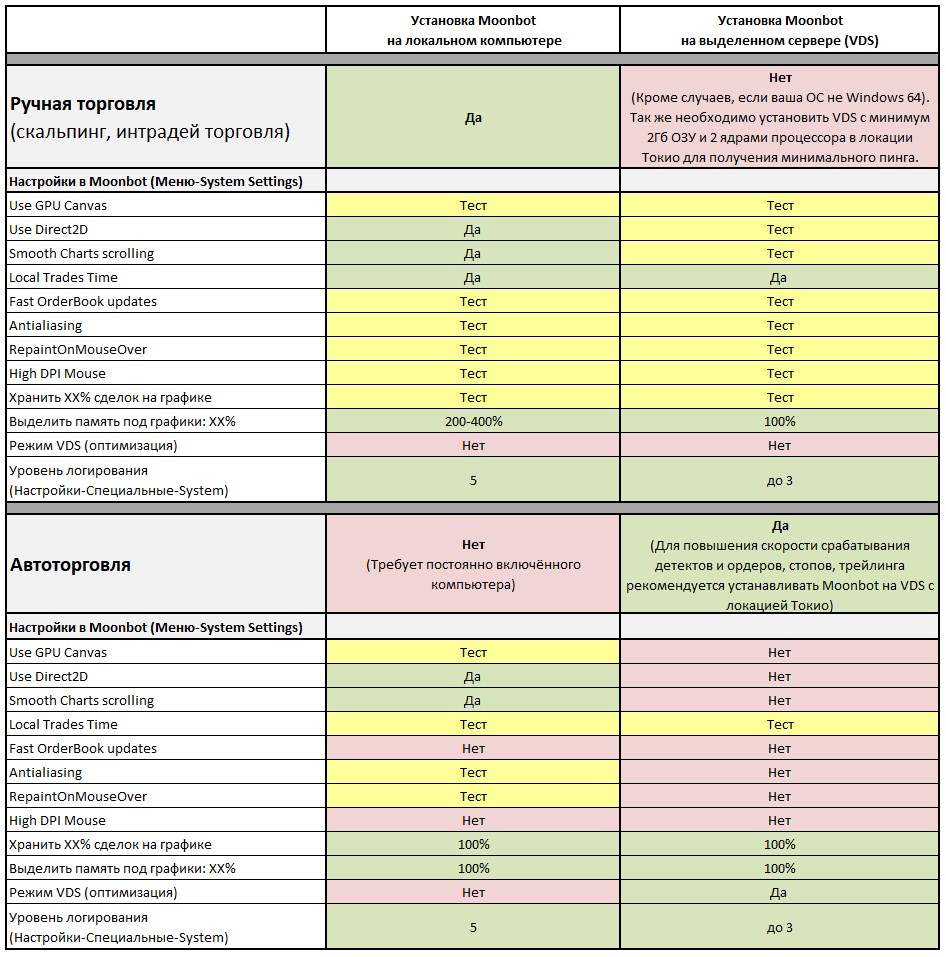
Legend for the table:
-
Yes - recommended setting; this means that you must tick the relevant box, or that the setting is suitable for this operating mode;
-
No - this setting is not required; we recommend unchecking the box; if necessary, you can enable it manually;
-
Test - settings that are recommended to be disabled initially; once the terminal is running smoothly, you can enable them one by one and check whether they overload the PC or VDS.