Bottom Area with Service Information
Moon Streamer
Moon Streamer is a feature for real-time chart data transmission designed to eliminate lags and delays in chart data display.
This module is available to PRO version users after activation in the Moon Credits window. To open this window, go to the PRO tab and click Moon Credits, or click the Pro Version label in the lower-right corner of the main terminal window.
If lags occur on the exchange side, trading markers (crosses) may temporarily disappear from the chart in the Moonbot terminal. To solve this issue, a mechanism for accelerated transmission of market data from servers (VDS) located in Tokyo (Japan) to your computer has been implemented. This mode replaces the standard connection to the Binance exchange websocket. The feature can be enabled or disabled at any time, allowing you to return to the standard connection.
Data transmission is performed via the UDP protocol, which significantly reduces latency and decreases the amount of transmitted data.
⚠️ Attention! It is recommended to use Moon Streamer only for manual trading. When operating on a VDS with automated trading, this functionality is not required and may negatively affect terminal performance.
Note
-
When using your own server, Moon Streamer works for all spot and futures pairs; when using the Moonbot server, the functionality is available only for BTC, USDT, and BUSD pairs on the spot market, as well as for USDT futures;
-
When using mobile internet, the functionality may not work if the operator blocks UDP traffic;
For data transmission, you can use either the Moonbot server or set up your own server — this is done in just two steps. According to testing results, one server can reliably serve up to 30 users. If this number is exceeded, data loss may occur.
How to enable Moon Streamer in the terminal
To enable Moon Streamer, follow these steps:
-
In the lower part of the terminal, click on the network indicator (“Traffic Light”);
-
In the window that opens, click the Moon Streamer button;
-
In the settings window, enable the Use MoonStream connection option to start receiving data from the server;
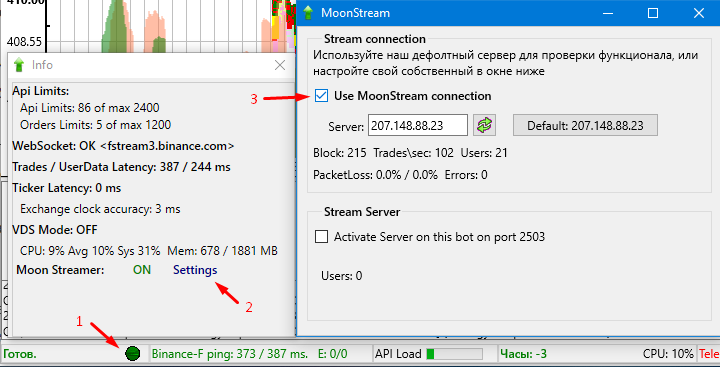
If you are using your own server or received an IP address from another user, enter it in the Server field and click the connect button.
If your computer is located in Russia and Moon Streamer does not work for Binance Spot (USDT) and Binance Futures, enter the following IP address in the Server field: 23.111.111.103.
To disable Moon Streamer and return to the standard Binance websocket, uncheck the Use MoonStream connection option.
How to set up your own server
To configure your own server, follow these steps:
-
Prepare a VPS in the Tokyo region with at least 2 CPU cores and 2 GB of RAM;
-
Install three Moonbot terminals on the server: for BTC (spot), USDT (spot), and USDT (futures);
-
In each terminal, open Menu → System Settings and enable the VDS Mode (optimization) option;
-
Configure incoming UDP ports in the range 2500–2503; outgoing ports should remain open by default;
-
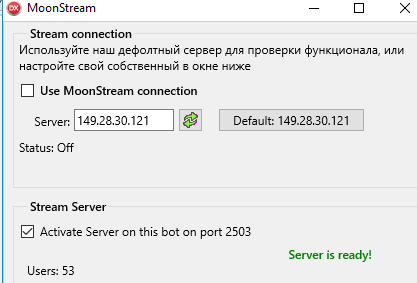
In the data transmission settings window, enable the Activate Server option.
If the ports are configured correctly, the message “Server ready!” will appear, after which you can connect to the server using its IP address.
At the bottom of the window, the number of connected users (terminals) is displayed. When hovering over this value, you can see the IDs of the connected terminals.