Connecting to the Binance Exchange
We recommend registering an account on the Binance exchange using the Moonbot referral link:
🔗 https://accounts.binance.com/register?ref=joinmoonbot.
For all accounts registered through this link, an automatic cashback applies: 10% on all futures trades during the first month of trading, 20% on all spot trades for lifetime, and the option to activate a 14-day free trial period of the PRO version becomes available.
After activating the PRO version using the Moonbot referral link, the following bonuses will be available to you:
-
BNB auto-buy option when trading USDT-M futures;
-
MoonHook strategy;
-
Price emulation on the chart using the Pencil tool;
-
Chart monitoring module in separate windows;
-
MoonKernel module — client-kernel mode for faster manual trading.
The Moonbot terminal for Binance supports both spot and futures markets.
When using the Moonbot terminal for Binance on a dedicated server, it is recommended to select the “Japan” (Tokyo) location for better ping.
Activation of subaccounts is performed through the Moon Credits window (instructions are provided below), and this requires 500 Moon Credits — for activating each subsequent subaccount. Moon Credits are available only to users of the PRO version of Moonbot.
After logging into your Binance exchange account and completing verification:
1) Open the futures trading chart in the web interface Binance Futures → USDTⓈ-M Futures;
2) Follow the yellow prompts on the screen and complete the test for access to futures trading.
You also need to transfer a small amount to the futures account in your Binance exchange account;
3) Go to Account → API Keys and click the Create API Key button;
4) In the Select API Key Type window, choose System-generated API Key to create HMAC keys, or User-generated API Keys to create RSA keys;
5) In the Create API window, in the Create a label for API keys field, enter a label name for the API keys, for example MOONBOT, and click Next;
6) In the Authenticator Verification window, enter the 6-digit code generated by the authentication app and click Submit;
After completing these steps, the API keys will be successfully created.
⚠️ Important! Save the API Key and Secret Key in a text file on a USB drive or write them down on paper — these keys will be required to register them in the Moonbot terminal (on the Settings → Login tab).
7) Then click the Edit Restrictions button and additionally enable the following options:
-
Enable spot and margin trading;
-
Enable futures.
8) Click the Save button.
9) In the Security Verification Requirements window, complete the required verification procedures and enter the code from the authentication app and the code sent to your email to confirm saving the changes to the API keys.
How to Activate API Keys in the Terminal for the Binance Exchange
-
Create API keys on the Bitget exchange website for the main account or a subaccount;
-
Copy the folder with your main PRO terminal for another exchange into a new folder and launch the terminal;
-
Go to Settings → Login, in the Exchange field select Binance (for spot) or Binance Futures (for USDⓈ-M futures) or Binance Quarterly (for COIN-M futures) and click Apply;
-
In Settings → Login, register the API keys from your main account or subaccount;
-
In the lower-right corner of the main window of the Moonbot terminal, click the PRO version label to open the Moon Credits window with activation of paid modules (see the figure below);
-
In the Moon Credits window, the lower section displays the balance of your Moon Credits; activating the main account or one subaccount requires 500 Moon Credits; if the balance is sufficient, in the Activate API Key block click the Activate for 500 Credits button — the API keys will be activated in this terminal;
-
If you need to activate additional subaccounts of the same exchange, repeat the procedure the required number of times.
Specific Features When Working with the Binance Exchange
The main nuance when working with the Binance exchange via API is the limit on the number of operations per minute. If the limits are exceeded, the exchange temporarily blocks the IP address for several minutes. Therefore, Moonbot continuously monitors API load; when approaching the limit, operations will be executed with delays.
Current API usage is displayed by the API Load indicator in the bottom panel of the terminal (see the figure below). As long as the indicator is approximately half-filled, there is no need for concern; if the indicator turns red, this means the limit is close to being exceeded, and the terminal will start adding delays to commands.

The most resource-intensive operation is loading the full order book (1000 orders). Therefore, on Binance the terminal loads the full order book only for the chart in full-screen mode; for other markets, a depth of 100 orders is used.
For the same reason, data loading at terminal startup on Binance is divided into two stages. First, the main data is loaded — volumes, prices, and order books with a depth of 100 orders; then Moonbot gradually loads additional data required to calculate Pump Q (the status panel displays the message Updating data); for Pump Q calculation, order books with a depth of 500 orders are loaded to detect walls.
In manual mode or with the Pump Q check disabled, the terminal is ready to use immediately; if Q check is enabled, it is recommended to wait until data loading is complete, otherwise the Q value may be inaccurate.
The SuperFast2 autodetect method is not supported on Binance, as continuous monitoring of the order book quickly exhausts the API limit required for order management.
⚠️ Warning! Binance has restrictions on the minimum order size, price step, and volume step; if fees are paid in BTC, fractional coin balances that cannot be sold may remain on the account. Therefore, before starting trading on Binance, it is recommended to purchase BNB and maintain a sufficient balance for paying fees; when paying fees in BNB, the exchange provides a discount.
⚠️ Warning! When running multiple instances of Moonbot on the same computer or on different machines connected to the same network and sharing a common IP, API load is aggregated, which may lead to a ban from the exchange. Be careful and monitor the API load at the bottom of the terminal window.
If you have accounts on Binance and other exchanges, switching is performed in Settings → Login (see the figure below):
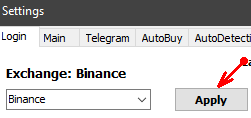
It is recommended to create a separate folder for each exchange by copying the Moonbot folder; in each folder, the terminal is configured for a specific exchange; this allows you to run multiple terminals simultaneously on one computer and monitor market movements across different exchanges.
Connecting to Binance Servers
By default, in Moonbot for Binance, the Settings → Advanced → Engine Settings section uses the Original connection method; in most cases it works without additional actions on your part (see the figure below).
Depending on the region, internet provider, and network settings, the terminal may automatically switch connection methods to select the optimal option. If connection issues occur (ping above 500 ms, errors in the log when placing orders, no chart updates), try changing the connection method.
After changing the method:
-
Click the Refresh button (button with two green arrows on the right);
-
Place an order and move it several times;
-
Evaluate whether the request processing speed has improved.
Additionally, in the main terminal window you can select Menu → Refresh Connection, as well as restart your router, computer, and run the Moonbot terminal as administrator.
⚠️ Warning! Sometimes Binance servers may be temporarily unavailable; try different connection methods and click the Refresh button several times; if the connection cannot be established, traffic may be blocked by the provider or government services; in this case, use a connection through another provider or additional access methods (VPN, Proxy).
If you have completed all the above steps, waited more than 60 minutes, and the issue is not resolved, contact our Telegram group for assistance 📢 https://t.me/MoonBotSettings.