This page is not yet translated. Showing the English version.
Новости
When you select Menu -> News, a separate Important News window opens, which contains important news and recommendations for configuring the Moonbot terminal.
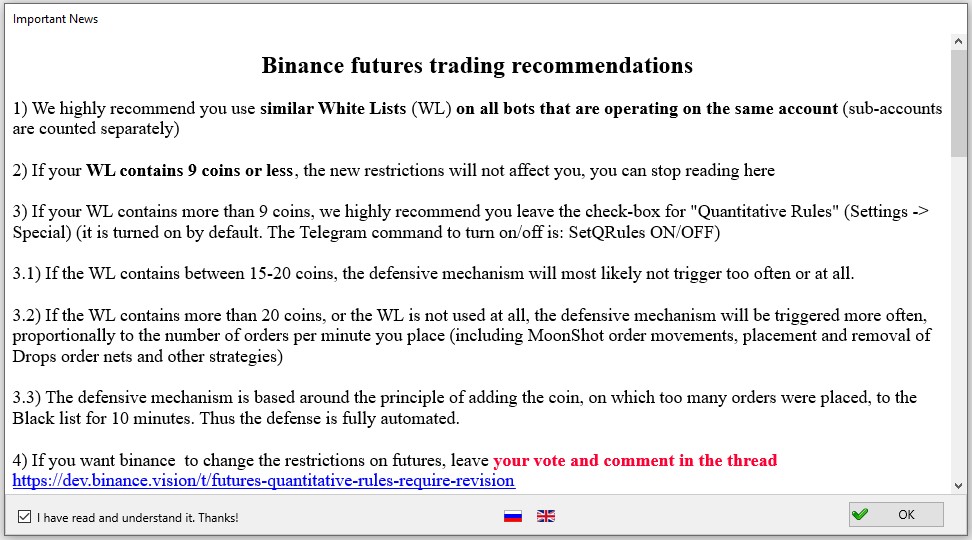
Binance futures trading recommendations
1) We highly recommend you use similar White Lists (WL) on all bots that are operating on the same accourt (sub-accounts are counted separately)
2) If your WL contains 9 coins or less, the new restrictions will not affect you, you can stop reading here
3) If your WL contains more than 9 coins, we highly recommend you leave the check-box for "Quantitative Rules" (Settings -> Advanced -> Engine Settings) it is turned on by default. The Telegram command to turn on/off is: SetQRules ON/OFF.
3.1) If the WL contains between 15-20 coins, the defensive mechanism will most likely not trigger too often or at all.
3.2) If the WL contains more than 20 coins, or the WL is not used at all, the defensive mechanism will be triggered more often, proportionally to the number of orders per minute you place (including MoonShot order movements, placement and removal of Drops order nets and other strategies)
3.3) The defensive mechanism is based around the principle of adding the coin, on which too many orders were placed, to the Black list for 10 minutes. Thus the defense is fully automated.
4) If you want Binance to change the restrictions on futures, leave your vote and comment in the thread https://dev.binance.vision/t/futures-quantitative-rules-require-revision
Automatic trading server setting recommendations
1) Server Locations for Auto Trading: For Binance, HTX, Gate, Bitget and Hyperliquid, choose Tokyo (Japan); for Bybit - Singapore; for Binance we previously recommended Tokyo, but recently API errors occur when working from Tokyo. If you see errors 12030 or 10054 (in the log or in the window when you click on the API indicator), we recommend that you move the Moonbots to the Seoul location).
Note: We highly recommend that you run 1 Moonbot per 1 VPS. Running more bots on a single VPS may lead to API overload.
2) Menu -> System Settings - check «VDS optimized mode» box. We highly recommend you do so, this option helps save server resources. Less RAM and CPU power is wasted on storing and sorting graphs and more resources are dedicated to the proper functioning of algorithms.
3) Turn Off Windows auto-update and Windows Defender! Otherwise the system may reboot and leave open orders on the exchange. Disable daylight saving in the time zone settings, or better use the "(UTC) Coordinated Universal Time" time zone.
4) We highly recommend that you carefully study and configure the Control hanged position function. When working with Binance, there are API errors 12030 or 10054 (check for them in the log or in the API window when you click on the API indicator). Binance is not going to fix them, however the negative effect of these errors may be highly reduced by using the Control hanged position function with "Ignore Replacing Bug" option.
5) When working with Moonshots with a short price interval (up to 0.5% difference between MshotPriceMin and MshotPrice) we recommend using MShotAddDistance = 50. We also recommend using trades-based price calculation (MShotUsePrice = Trade) in all cases except for long shots (from 2%), since this setting provides a faster reaction to market changes.
6) When using strategies aimed at high frequency trading (MoonShots with short time intervals, Strikes, Drops with small delta) it is advised to use positive values for the HFT parameter (an integer number).
Here's how it works:
The value of HFT determines the timeframe in milliseconds, during which the request to place an order (sent to the exchange) is valid. If 0, then the parameter isn't used (the order is valid until execution or cancellation).
Why this is needed:
if, while the bot is working on a VPS the ping has increased, the command for placing an order on Binance will reach the exchange slower. If a small timeframe is set, such an order will not be accepted by Binance. This will allow avoiding a situation in which an order is placed "too late" and the trade takes placed under changed market conditions.
On VPS with a ping of 10-20 you can set a HFT = 100. If the orders won't be accepted you can try 200...300.
If an order with the HFT parameter is not accepted, the bot will send a notification in Telegram. You can adjust the frequency of such notification in Settings -> Special (default value is not more than once a minute).
6) "Settings -> Autostart". It is mandatory that you turn on the "Autostop on API errors" option, set the number of errors to 3 or 4. Set the Restart not sooner than after 20 minutes.
7) We also recommend using a ping stop with a ping threshold of 200 and more.
8) Set up the auto-login in windows (Menu -> System Settings, insert your login and password for your Windows account and click the "Auto login" button).
If you have not yet added the Moonbot to Autostart, click the "Autostart" button in the same menu.
To check all these settings, restart your server (hot restart through the VPS control panel) - MoonBot must start and resume operation automatically.
ATTENTION!
API keys and strategies reselling are strictly prohibited!
If anyone offers you to purchase a key, in 90% of the cases it is a scam, the remaining 10% will result in complete ban for both users. Refer to EULA 2.2.
Activation of the PRO version is done in the Moonbot itself, Settings -> Unlock page.
In case of some troubles feel free to use our Moonbot English public Telegram group https://t.me/Moon_Bot_Public